
You can use your mouse or keyboard in an alternate way through Ease of access settings. Also you can play with some Windows 7 settings that make the screen more readable and sounds more understandable.
Wednesday, January 19, 2011


Monday, January 17, 2011
Permanently Pin Icons to the Taskbar in Windows 7
Windows 7 provides the ability to permanently “pin,” or attach, frequently used program icons to the taskbar, so your most frequently used programs can immediately be started. By default the three icons – Internet Explorer, Windows Explorer and Media Player are pinned to taskbar in Windows 7.
There are different ways you can pin your favorite program to taskbar for faster access. The easy way is after starting the program, right click on the program icon at taskbar and select ‘Pin this program to taskbar’ as shown in image. Here I have Pinned the Paint Brush program to Taskbar.

You can even pin your already created document too. See the below image where I can pin already created Picture ( any of shown as Recent ) directly by clicking on small pin icon:

To unpin a program icon from taskbar, just right-click and select ‘unpin this program to taskbar’ as shown in following image:

You can also move your pinned program icons, by just drag and drop. See following image where I have moved Paint Brush program to fist position:

Friday, October 8, 2010
Desktop Properties of Windows XP
With the desktop properties you can change the look of Windows XP.
1. Right click on desktop and select properties.

1. Right click on desktop and select properties.
Wednesday, October 6, 2010

Customize Start Menu In Windows XP
Customizing the start menu in Windows XP is very easy, just follow the steps.
1. Click on start button and note what programs are in the list, specifically see Printers and Faxes as we are going to remove this from start menu.

1. Click on start button and note what programs are in the list, specifically see Printers and Faxes as we are going to remove this from start menu.

Saturday, September 11, 2010
Change Resolution in Windows 7
Depending on your computer and monitor, you can display Windows 7 with various resolutions and text sizes. You can select the text and object size in the Display window and then go on to adjust the resolution. From the Personalization window:
1. Right click on desktop and select Personalize.
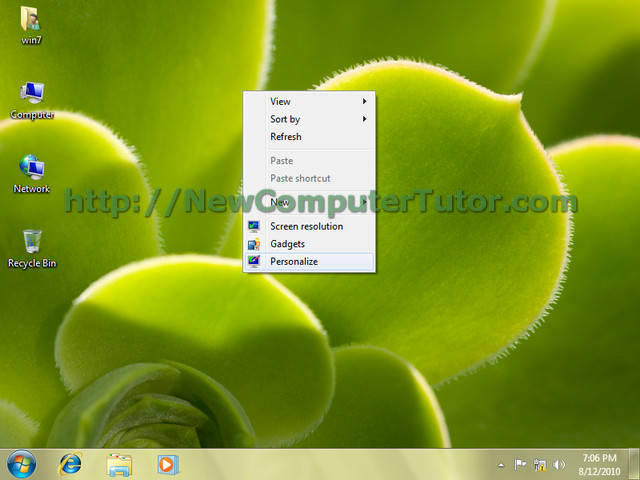
1. Right click on desktop and select Personalize.

Wednesday, September 1, 2010
Change Theme In Windows 7
1. By default windows 7 has a light blue theme plus some more themes available to choose. To see all the themes just right click on desktop and select Personalize.


Tuesday, August 31, 2010
Working With Gadgets in Windows 7
1. When you install Windows 7, you can see some gadgets on desktop. If its not by default on your desktop, just right click and select Gadgets.


Monday, August 30, 2010
Get Familiar with Windows 7 Desktop-Part 2
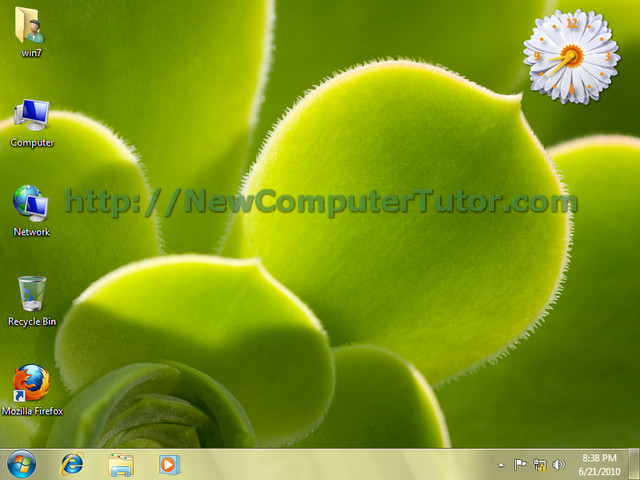
1. Windows 7 Desktop is made of some icons, a background wallpaper, some gadgets, the task bar with start menu icon, default program shortcuts, a notification area and date and time display.

Sunday, August 29, 2010
Get Familiar with Windows 7 Desktop
The desktop is the entire screen, except for the bar at the bottom. Windows, dialog boxes, and icons, such as the Recycle Bin, are displayed on the desktop. You can store shortcuts, which are icons for your favorite programs, on the desktop. You can drag windows, dialog boxes, files, and icons around the desktop. Double-click an icon on the desktop to open it.

Sunday, July 25, 2010
Create New User In Windows XP
The tutorial shows how you can create different Windows XP user accounts if your computer is being used by different persons, say by your family members.
1. Click on start button and select control panel.

1. Click on start button and select control panel.

Fast Switching among users
You can use Windows XP’s fast switching facility to work different users on the same computer without logging of. Selecting switch users will let another user to work on the same computer without stopping any of your programs or work.
1.Click on start menu and click on log off.

1.Click on start menu and click on log off.

Subscribe to:
Posts (Atom)